
Step 1: Sign in to App Store Connect
First, visit App Store Connect and sign in with your Apple Account (formerly your Apple ID). Make sure you have the permissions needed to manage the app whose name you want to change — the App Manager or Admin role.
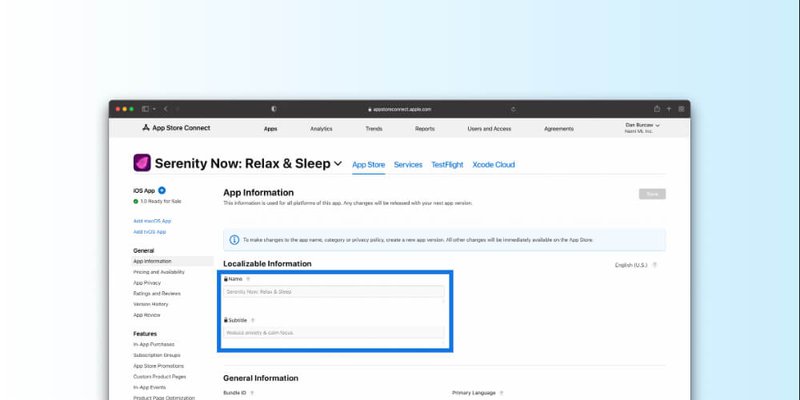
Step 2: Select Your App
Go to the Apps section, where you’ll see every app associated with your account, and select the one you want to rename.
Step 3: Make Sure You Have an Editable Version
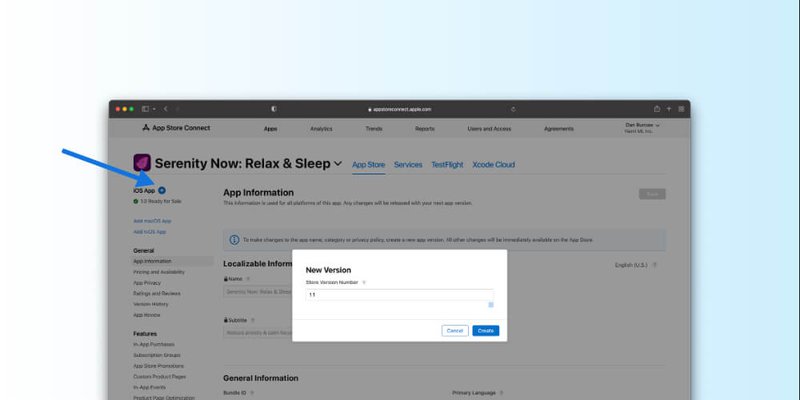
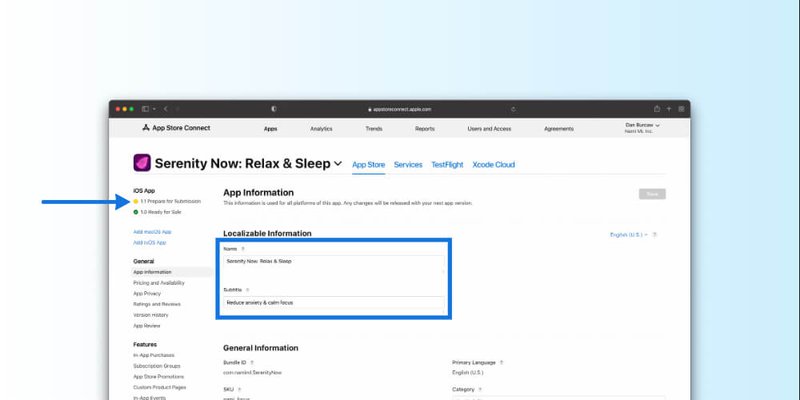
Apple reviews an app-name change as part of an app version, so you need a version that isn’t live yet. If your most recent version is already approved and on the App Store, create a new version first using the add-version control on your app’s page. If you already have a version in Prepare for Submission, you can edit the name right away.
Step 4: Open App Information
In the sidebar, under General, select App Information. This is where your app’s name and subtitle live. Both are localizable, so you can set a different name for each language or region you support.
Step 5: Change the App Name
Update the Name field with your new app name. App Store names are limited to 30 characters, and the new name must follow Apple’s App Store Review Guidelines and metadata rules. Update the Subtitle at the same time if you want the two to stay in sync.
Step 6: Save Your Changes
Click Save to store the updated metadata.
Step 7: Submit for Review
Submit the version for review. Apple reviews the change along with the version, and your new name goes live on the App Store once that version is approved.
If Your App Is Not Yet Live
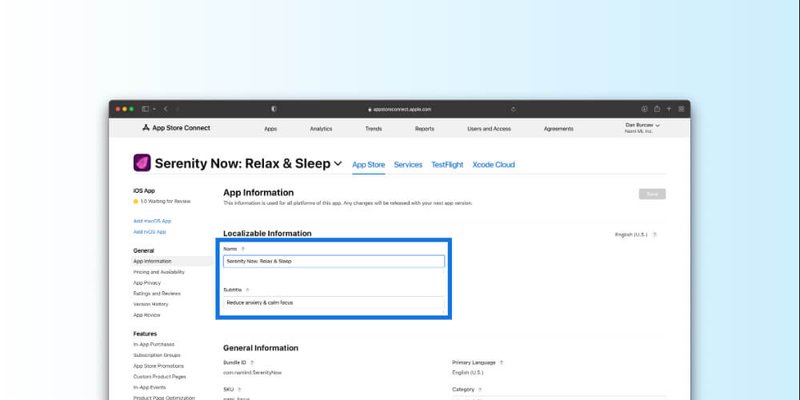
For an app that hasn’t shipped yet, you don’t need a separate review just to set the name. Open App Information, edit the Name and Subtitle fields directly, and save. The name you set is applied when the app is approved and goes live with its first release.
Additional Considerations
- App Store Optimization (ASO): When changing your app name, consider how it affects your ASO. Use keywords that improve discoverability and match how people search. Tools like Sensor Tower or Appfigures can surface effective keyword strategies.
- Brand Consistency: Make sure the new name aligns with your overall branding. Consistency across app icon, screenshots, and promotional materials reinforces recognition.
- User Communication: Let existing users know about the name change to avoid confusion. In-app messages, push notifications, and email are good channels for this.
- Legal and Trademark Considerations: Confirm your new app name doesn’t infringe on an existing trademark. Legal conflicts can get your app removed from the store.
Read more: The App Store rejected my app, now what?
Summary
Updating your app name in App Store Connect is a straightforward way to keep your app’s identity current. By following the steps above and accounting for ASO, branding consistency, and user communication, you can change your app name and keep it aligned with your latest updates.
If you’d like to learn more about how App Store Optimization relates to monetization, we’d be happy to help. In the meantime, happy app making and best of luck with App Store discovery.